
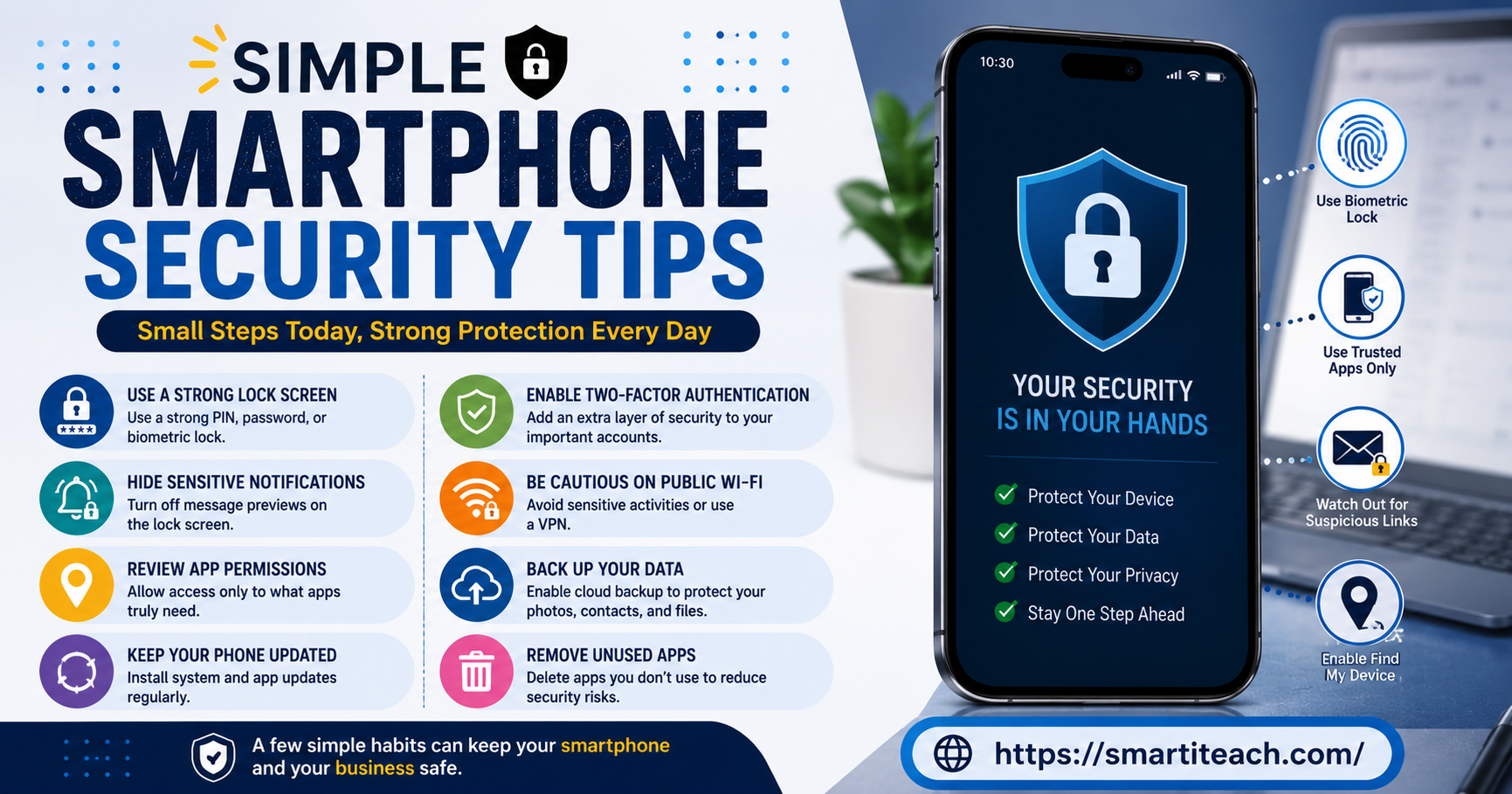

My phone slid out of my jacket pocket on a train a while back. I found it four minutes later, wedged under the seat in front of me. But in those four minutes, I ran through everything a stranger could do with it. My email. My banking app, which I’d left logged in from that morning because I never bother closing it. Photos I’d rather nobody scroll through. Not a fun four minutes, honestly. It made me realize how little I’d actually locked down, beyond a passcode I set up years ago and never thought about again.
Most people are in that same spot, I’d guess. Not careless, just never got round to it. The good news is none of this takes much effort once you sit down and do it. Here’s what I think is actually worth your time, not the stuff that just sounds impressive.
Your lock screen is doing less than you’d think
A four-digit PIN beats nothing, but it’s not doing a lot. Six digits is a real step up. A proper passcode with letters mixed in is stronger again, though yes, more annoying to type fifty times a day. Face unlock and fingerprint work fine for everyday use. But the passcode underneath still protects the phone if biometrics fail to read your face at 6am. So don’t make that fallback something lazy like your birth year.
Here’s a thing almost nobody checks. How long does the phone wait before it locks itself once you stop touching it? If yours sits at a minute or more, that’s a minute where anyone could pick up a phone left on a table. Drop it to thirty seconds. Small annoyance, real gap closed.
Notifications on your lock screen give away more than you’d guess
This one caught me off guard when I actually thought about it. Every text preview, every email subject line, every six-digit code — all of it shows up before you’ve even unlocked the phone. Anyone glancing at your screen can read it, no passcode needed. That includes the codes your bank sends to verify it’s really you, which kind of defeats the point if it’s sitting in plain view for whoever’s standing next to you on the bus.
Go into notification settings and switch off previews on the lock screen. Or at minimum, hide them for banking apps, email, and messaging. You’ll still get told something arrived. You just won’t get the actual content splashed across the screen for free.
Actually look at what your apps can access
Most of us install something, tap allow on whatever popup shows up, and never think about it again. Years later, that flashlight app you downloaded once still has access to your contacts and your microphone. Nobody could really explain why.
Go into settings and look at app permissions sorted by type, not one app at a time. Check everything with location access. Check everything with microphone access. Check everything touching your contacts. You’ll almost always find something that makes zero sense — a game wanting your location, a photo app wanting your mic. There’s rarely a real reason for that. Turning it off costs you nothing, since apps just ask again later if they genuinely need it.
Location deserves extra attention here. Plenty of apps default to “always” when “only while using the app” does the exact same job, minus the constant background tracking.
Updates matter more on a phone than almost anywhere else
It’s easy to let phone updates pile up. They always show up at the worst time and don’t visibly change much. But a big chunk of what those updates actually fix are security holes. Attackers already know about these holes. They’re already using them against whoever hasn’t updated yet.
Turn on automatic updates if you haven’t, both for the phone itself and for your apps individually. It’s the lowest-effort thing on this whole list, and it closes gaps that would otherwise sit wide open indefinitely.
Public Wi-Fi deserves a second thought
Free Wi-Fi at a coffee shop or an airport is convenient, no argument there. But someone can intercept your traffic more easily on these networks, especially ones that don’t even ask for a password. That doesn’t mean you need to swear it off completely. Just be more careful about what you do while connected. Save your banking, your email, and anything with saved payment info for a network you actually trust. Use a VPN if you need to handle something sensitive while you’re out.
Also worth switching off, if you haven’t already: your phone automatically joining any open network it recognizes. That “convenience” feature quietly connects you to networks you never actually chose. You’d probably avoid some of them if you saw the name first.
Turn on two-factor authentication, especially for email
Two-factor authentication means that even if someone steals your password, they still need something else to get in — usually a code from an app. It’s a small bit of friction, but it stops a huge share of the ways people actually break into accounts.
If you only do this for one thing, do your email. Your phone ties to that inbox, and that inbox is the recovery method for everything else: your bank, your social accounts, wherever you shop online. Someone who gets into your email can reset their way into nearly all of it. Locking down that one account matters more than tightening ten smaller ones.
Be honest with yourself about what’s actually backed up
Imagine your phone got lost, stolen, or just died tomorrow. Could you actually recover your photos, contacts, and messages? Or would it all just be gone for good? Most phones have cloud backup built in, but plenty of people never finish setting it up. Some switched it off years ago after dismissing a prompt without a second thought.
Check that backup is actually on, and check when it last ran. A backup that hasn’t run since last winter isn’t protecting much. This isn’t quite the same kind of security as stopping a break-in, but it’s part of the same picture. Losing a phone shouldn’t mean losing everything that was ever on it.
Texts and links are still a huge weak spot
Phishing over text has gotten a lot more convincing. A message might look exactly like it’s from your delivery company, your bank, or even your own carrier. The link inside looks close enough to real that most people wouldn’t look twice. These messages tend to push urgency on purpose — your account is about to be suspended, or a package needs “action” right now — because urgency makes people click before they think.
The habit that protects you here costs almost nothing. Don’t click links in texts you weren’t expecting, even ones that look legitimate. Open the app yourself instead, or type the site in manually, if your bank actually needs something from you. It costs a few extra seconds, and it makes the whole scam pointless. A fake link can’t do anything if you never touch it.
Old apps you forgot about are still sitting there
Every app you haven’t opened in a year still holds whatever permissions it originally got. It can still change through updates too, assuming the developer still maintains it. Abandoned apps are almost worse. They stop receiving security patches entirely, yet they keep whatever access you gave them back when you first installed them.
Every few months, scroll through
what you’re not using. It’s not a dramatic fix, but it shrinks the number of things that could go wrong. It usually frees up a decent chunk of storage too, which is a nice bonus.
Have a plan for stolen, not just lost
Losing your phone down the side of the couch is annoying but harmless. Someone stealing it and knowing exactly what they’re doing is a different situation entirely. It’s worth having a plan before it happens, not scrambling to figure one out mid-panic.
Learn how to remotely lock or wipe your phone using its built-in device-finder feature. Memorize your login for that service; don’t save it only on the phone itself, because that won’t help you much once the phone’s gone. If your phone is stolen, locking or wiping it within minutes, rather than hours, makes a real difference in how much someone can do with it before it becomes useless to them.
None of this has to happen all at once
Reading all this in one sitting probably feels like a lot, but you don’t need to fix everything today. Start with the lock screen timeout and the notification previews. Those take about two minutes combined and close two real gaps immediately. Then work through app permissions whenever you have ten spare minutes. Turn on two-factor for your email. Check that your backup is actually running.
None of this makes your phone untouchable. Nothing really does. But it moves your phone out of easy-target territory, which covers most of what actually goes wrong for most people day to day. Pick one thing off this list and do it now, while you’re thinking about it. The rest can wait until later.




[…] or client-facing part, the scaffolding around it. Done right, a new client goes from “just said yes” to “fully set up, ready to start” without the freelancer manually shoving every […]
[…] Here’s the thing nobody tells you: a great folder structure means nothing if the files inside it are all named “final.” Skip the naming step and you’ll end up with a perfectly organized set of folders, each one stuffed with files called “final,” “final_v2,” and, eventually, “final_ACTUALLY_final.” […]