
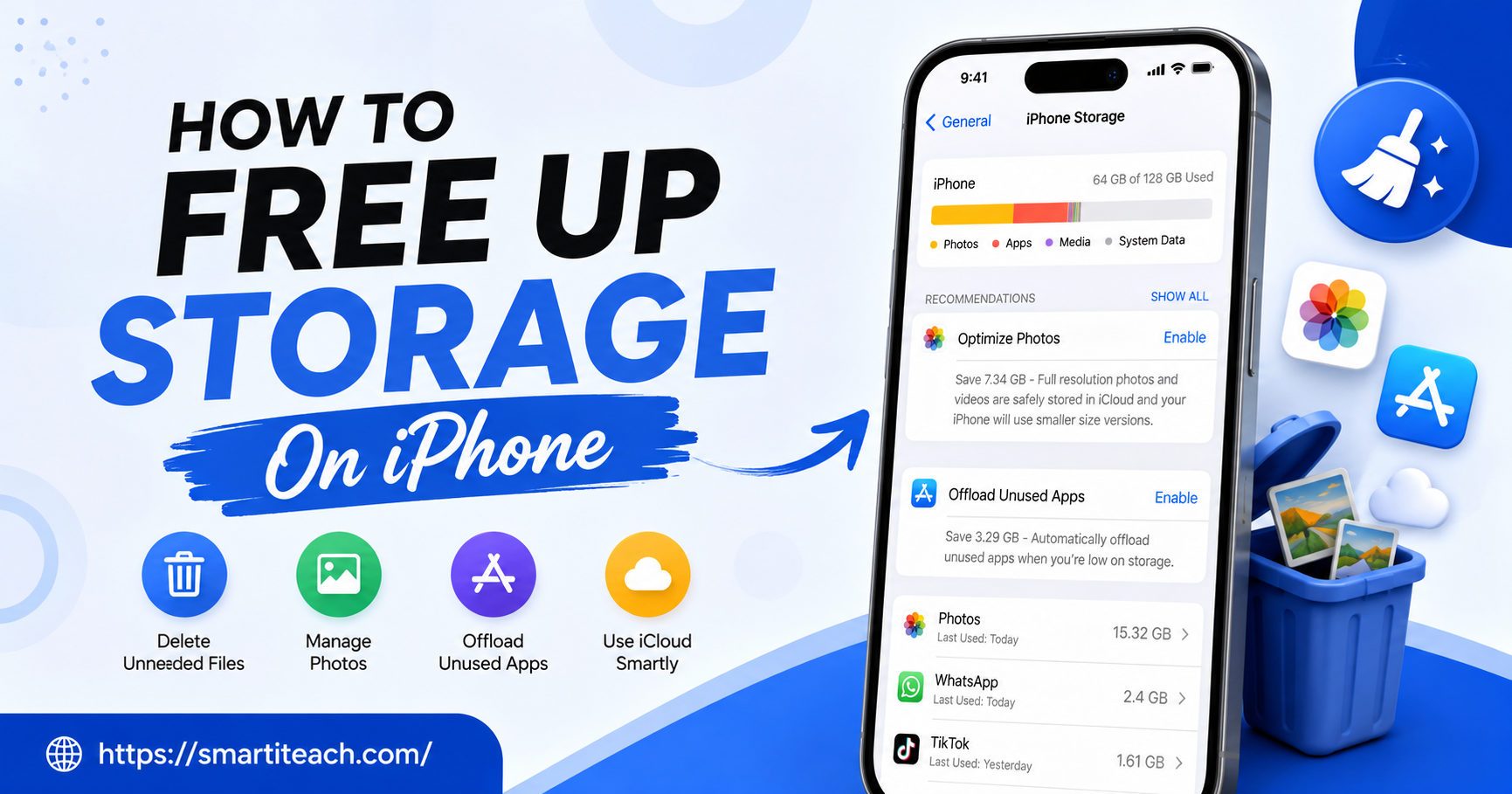

“iPhone Storage Almost Full.” You know the one. It always shows up right when you’re trying to record something, or update an app you actually need, and suddenly you’re staring at your phone wondering what’s even taking up all that space.
Most people’s reaction is to start deleting photos out of guilt, or start pricing out a new phone. You probably don’t need either, at least not yet. Phones quietly pile up junk for years without anyone noticing — old backups, apps nobody’s opened since forever, caches that just kept growing in the background while you weren’t looking. Clean it out properly and you’ll usually get back a lot more than you’d expect, sometimes enough to buy yourself another year or two before you have to think about upgrading at all.
Check Where the Space Is Going First
Don’t just start deleting things randomly, that’s how you end up regretting it later. Open Settings, tap General, then iPhone Storage. Give it a second to load.
You’ll see a bar broken into Apps, Photos, System Data, Messages, stuff like that. Plus a list underneath ranking every app by size. This step matters because everyone’s storage looks different. Some people have one game eating 15GB by itself. Others have five years of photos nobody’s ever gone back and sorted through. Look at your own numbers before doing anything else.
Offload Apps Instead of Deleting Them
This is the trick almost nobody uses, and it’s genuinely the best one here. Offloading takes the app off your phone but keeps everything — your data, your settings, your saved progress — tucked away safely. Reinstall it whenever, and you’re right back where you left off.
Same Storage screen. Tap an app you barely open anymore, hit Offload App. Old games, one-time-use apps, streaming apps you forgot you even downloaded — these are usually the big ones.
There’s also a toggle called Offload Unused Apps in that same menu. Turn it on once and iOS just handles this for you going forward.
Turn On iCloud Photos and Optimize It
Photos and video eat more storage than everything else combined on most phones now. A few seconds of 4K video is hundreds of megabytes on its own. Even a single photo isn’t the tiny file it used to be.
Settings, then Photos, switch on iCloud Photos, pick Optimize iPhone Storage. Your full-size originals live safely in iCloud. Your phone keeps lighter versions locally that still look sharp and pull up full quality the second you tap into them. You’re not actually losing anything here, your phone’s just not carrying around every massive file at once.
No iCloud? Manually moving your camera roll over to a laptop every few months does basically the same job. Just more work on your end.
Empty Recently Deleted
Here’s what trips people up. Deleting a photo doesn’t actually delete it right away. It sits in Recently Deleted for up to 40 days, still taking up exactly the same space it did before.
Photos app. Albums. Scroll down to Recently Deleted. Tap Select, then Delete All. If it’s been a while, this alone can hand you back several gigabytes.
Same thing happens in Notes, Voice Memos, and Files too. All of them have their own little trash bins quietly holding onto stuff you thought was gone already.
Clean Out Messages
If you’ve had this phone a few years, Messages might be the sneakiest offender on your whole device. Every photo, voice memo, video, GIF anyone’s ever sent you — still sitting there, unless you go tell it otherwise.
Settings, Apps, Messages, find Keep Messages, switch it from Forever to 30 Days or 1 Year. It’ll ask if you want to clear out the older stuff right then. Yes, you do.
Want to keep the conversations but ditch the media clogging them up? Open the chat, tap the contact’s name up top, then See All Photos, go through it manually from there.
Just Restart the Phone
Feels too simple to actually work, but it does. Cache files and background processes build up all day under what iOS calls System Data, and restarting clears out a good chunk of it.
Regular restart is fine. For something a bit deeper, force restart: press and let go of Volume Up, press and let go of Volume Down, then hold the Side button until the Apple logo shows. Nothing gets erased. It’s just a reset.
Delete Your Biggest Apps and Reinstall Them
Social apps, streaming apps, messaging apps, they all build internal caches that have nothing to do with what you actually use them for. Instagram, TikTok, Spotify especially, sometimes several gigabytes of pure bloat.
Instead of hunting through settings for a clear-cache option that might not even exist, just delete the app and grab it again from the App Store. Your login stays put since that’s tied to your account, not the app itself. The junk is what gets wiped clean.
Clear Out Safari
Years of browsing history and saved site data adds up more than people think. Settings, Safari, scroll down, Clear History and Website Data. Heads up, this logs you out of most sites, so be ready to sign back in.
While you’re there, check your open tabs too. Some people are carrying around 50 forgotten Safari tabs. Closing those helps beyond just storage honestly, the whole phone feels snappier.
Downloaded Podcasts, Music, and Video
Offline episodes and downloaded playlists sit quietly in the background piling up. Check your Podcasts app for auto-download settings and turn them off if that’s on. Go through Spotify, Apple Music, or Netflix too for anything saved offline that you’ve already finished with.
Let iOS Find Your Duplicate Photos
Photos, Albums, scroll to Duplicates. It scans your whole library and groups near-identical shots together, the five almost-the-same photos from one burst, say, so you pick your favorite and clear out the rest in a couple taps instead of scrolling for an hour trying to remember which one you liked best.
Reset Your Keyboard Dictionary
Small one, but worth doing while you’re already in there. Your keyboard builds up a personal dictionary from years of typing predictions. Settings, General, Transfer or Reset iPhone, Reset, Reset Keyboard Dictionary. Won’t free up much on its own, but it’s a two-second fix.
Get Rid of Apple Apps You Never Open
Never touch Stocks, Tips, GarageBand, Numbers? You can remove most built-in Apple apps just like any other app now. Press and hold the icon, Remove App, then Delete App. Need it back someday, it’s a free download again.
Check Mail for Old Attachments
Attachments quietly pile up in Mail too. PDFs, videos, photos that auto-downloaded years ago and never got touched since. If you use Gmail or Outlook’s own apps instead of Apple Mail, check their storage settings separately, since they don’t always share space the same way.
Handle WhatsApp and Other Messaging Apps Separately
Heavy WhatsApp or Telegram users often have just as much media clogging things up there as in regular Messages, sometimes worse because of forwarded videos in group chats. In WhatsApp, Settings, Storage and Data, Manage Storage shows exactly which chats are the worst offenders. You can clear large files chat by chat right from there.
Turn Off Background Auto-Downloads
Some apps quietly download media and updates in the background without really asking first. Settings, App Store, check the auto-download toggles. Dig around in WhatsApp or Telegram too, they usually have their own auto-download settings for photos and videos in chats. This stuff builds up over weeks without anyone ever noticing until the storage’s just gone.
Skip the Storage Cleaner Apps
You’ll see plenty of App Store apps promising to instantly clean your storage in one tap. Skip them. Genuinely. Apple’s sandboxing rules mean these apps can’t actually reach into system caches or other apps’ data the way the ads make it look. Most of them just help you delete your own photos, something you can already do for free through the built-in Storage screen. Don’t pay for that.
Older iPhones Fill Up Faster
If you’re on a phone that’s a few generations old, storage gets tight faster, mostly because the base storage tiers back then were smaller to begin with. A lot of people are still on 64GB or 128GB phones bought years ago, and every iOS update since has added a bit more overhead just to run properly.
Same fixes apply here, they just matter more. Offloading apps, clearing Recently Deleted, trimming Messages, these aren’t optional extras on an older phone, they’re basically routine maintenance at this point. If the phone’s also feeling sluggish alongside the storage warnings, a good chunk of that slowdown ties directly back to how full it is. iOS needs some breathing room to manage temporary files, and a phone sitting at 1GB free struggles a lot more than one sitting at 5GB free, even on identical hardware.
Still Out of Room After All This
Sometimes that happens. At that point it’s less about cleaning and more about your storage tier just not matching how you actually use the phone anymore. An iCloud+ subscription is cheap next to buying a whole new phone, and it lets your entire photo and video library live in full resolution in the cloud while your device only keeps the optimized copies.
Not into cloud storage? A small external drive works too. On newer iPhones with USB-C, you can move your camera roll and big files off the device entirely. Neither option’s exciting, but both beat deleting stuff you actually wanted to keep.
Keeping It From Piling Back Up
Cleaning storage once feels great. It creeps back up again if you ignore it for another year though. A few habits that actually help long term: check iPhone Storage every month or so, just a glance. Keep Optimize iPhone Storage switched on permanently. Set Keep Messages to a fixed window instead of Forever. Offload apps you haven’t opened in a while. Restart the phone every week or two, it genuinely helps more than it should.
Stay on top of that, and “Storage Almost Full” stops being a monthly thing. And when it does eventually show up again, at least you’ll already know exactly where to start.