

I got an email a while back that said someone had tried logging into my account from a city I’d never set foot in. Nothing happened, thankfully — the login was blocked — but it sat with me for a few days. Not because I thought I was specifically being hunted down, but because I realized I genuinely didn’t know how exposed I was. Turns out most people don’t.
So this isn’t a “top 10 tips” listicle written to fill space. It’s what actually matters if you want your accounts to stop being an easy target. And most of it isn’t complicated. It’s just stuff we put off.
Why reused passwords are the real problem
Let’s just say it plainly: if you’re using the same password on more than one account, that’s the biggest hole in your security right now. Not phishing, not some elite hacker group. Just that one password, copied and pasted, sitting on five or ten sites.
Here’s why that’s dangerous. When a company gets breached — and this happens more than you’d think, even to companies you trust — the stolen passwords don’t stay put. They get run against other websites automatically. Bots do this at scale, testing your email-password combo on banking sites, shopping sites, email providers, everything, within days of a leak going public. It’s not personal. It’s just efficient crime.
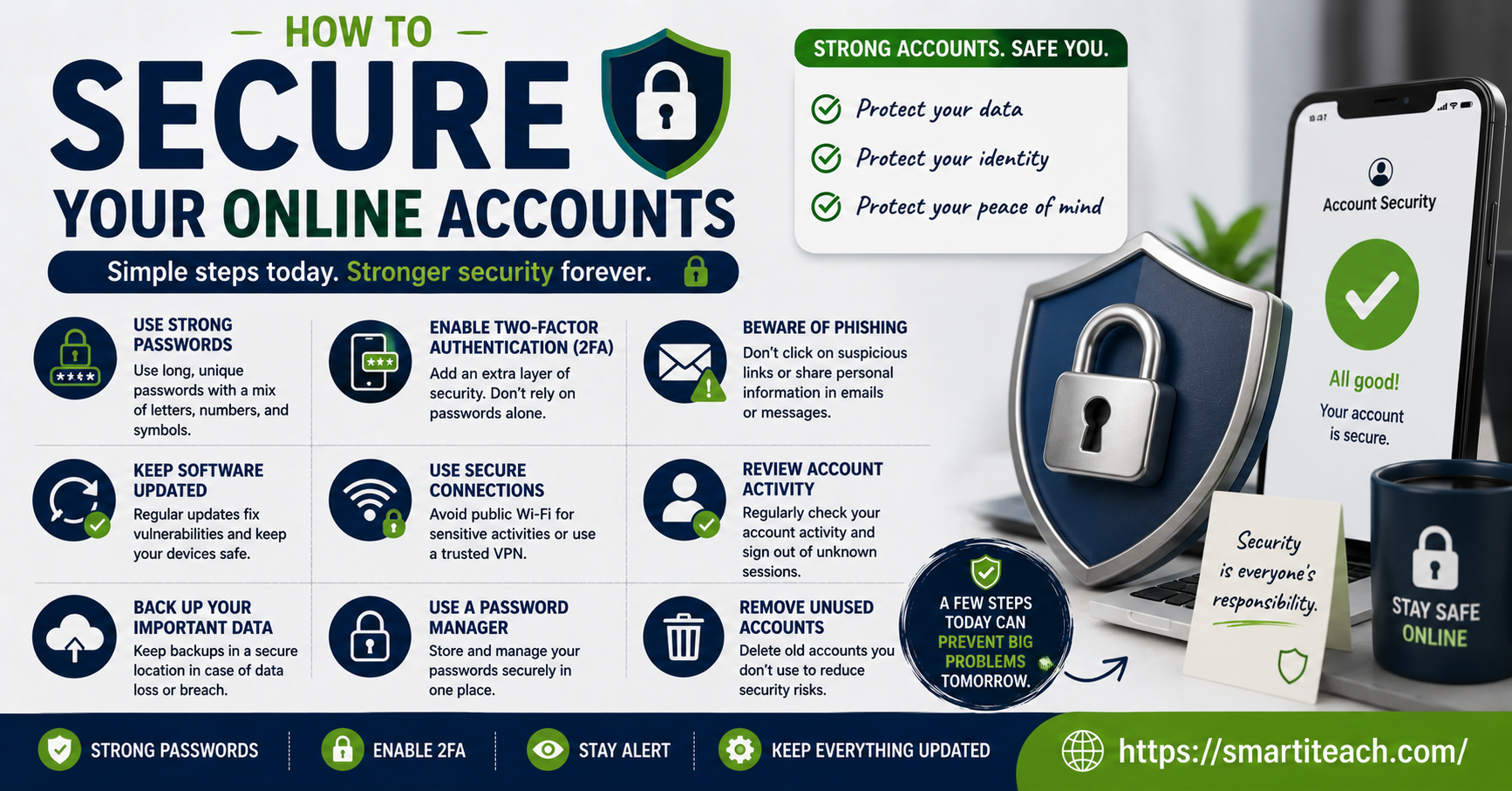
The fix people avoid because it sounds like a chore: get a password manager. One good master password, and it handles the rest — generating long, random passwords you’ll never have to memorize or reuse. I resisted this for years because setting it up felt like a hassle. It took maybe twenty minutes total. If a password manager still feels like too much right now, at least stop reusing passwords on your email, your bank, and anything tied to your identity.
Two-factor authentication is worth the ten extra seconds
I used to find two-factor authentication mildly annoying. Pulling out my phone, typing a code, waiting for it to load — it felt like friction for no reason. Then I thought about what it’s actually stopping: someone getting into your account with just a stolen password. That ten seconds of friction is the difference between “annoying” and “your account is gone.”
Not all versions of it are equal, though:
Text message codes are fine, but they’re the weakest option, since phone numbers can be hijacked through something called SIM swapping — basically tricking your carrier into handing your number to someone else.
Authenticator apps that generate a rotating code are a solid step up, since they’re tied to your actual device.
Physical security keys are the strongest option, though most people won’t need to go that far except for their most sensitive accounts.
If you only turn on two-factor authentication for one account, make it your email. Your email is the master key. Reset links for your bank, your social media, your shopping accounts — they all funnel back through your inbox. Whoever controls that controls everything downstream of it.
Spotting phishing before it spots you
Phishing doesn’t look like it used to. It’s not badly spelled emails from a stranger anymore. It’s a text that looks exactly like it’s from your courier company. An email that’s a pixel-perfect copy of your bank’s actual login page. A message that seems to come from someone you work with.
A few things tend to give it away once you know to look:
Urgency is a big one. “Your account will be locked in 24 hours” is designed to make you act before you think.
Links that don’t match where they claim to go. Hover over one on a computer, or press and hold on a phone, and check where it’s actually pointing before you click.
Requests for things a real company wouldn’t ask for by text or email — your full password, a one-time code, sensitive personal details.
Here’s the habit that’s saved me more than once: if a message claims to be from your bank or a service you use, don’t click anything in it. Open the app yourself, or type the website in manually. It costs you ten seconds and it makes almost every phishing attempt pointless, because a fake link can’t do anything if you never touch it.
Updates aren’t optional, even though they feel like it
Everyone hits “remind me tomorrow” on software updates. I get it — they show up at the worst times, and half of them don’t even seem to change anything visible. But a lot of successful attacks aren’t clever at all. They’re just exploiting a hole that got patched months ago in an update nobody installed.
This goes for your phone, your laptop, your browser, your apps — all of it. Turn on automatic updates wherever that’s an option. For the ones that need a manual click, don’t let them pile up for weeks. It’s a boring habit, but it closes doors that would otherwise just sit open.
Public Wi-Fi and the accounts you link together
Coffee shop Wi-Fi, airport Wi-Fi, hotel Wi-Fi — convenient, sure, but also a place where your traffic can be intercepted more easily, especially on networks with no password at all. You don’t need to avoid public Wi-Fi entirely. Just don’t log into your bank or check anything sensitive while you’re on it, unless you’re using a VPN to encrypt the connection.
Also worth a second look: those “log in with Google” or “log in with Facebook” buttons scattered across random apps. Convenient, yes, but it means one account becomes the single point of failure for everything you’ve linked to it. Not wrong to use, necessarily, just worth being intentional about.
Finding out if you’ve already been breached
Here’s the part people don’t want to hear: there’s a decent chance some of your information is already out there from a breach you never even heard about. Not every company that gets hacked makes the news.
There are free tools that let you check whether your email has shown up in a known breach. Worth checking every so often, the same way you’d glance at a credit report. If you find an old password of yours floating around out there, and any version of it is still in use anywhere, change it now, not later.
Recovery settings nobody remembers to check
Most people set up their email and bank accounts once and never revisit the recovery details. But numbers change, old email addresses get abandoned, jobs come and go. Take twenty minutes and check the recovery phone number and email on your most important accounts. If the recovery email points to an inbox you haven’t opened in three years, that’s not harmless — it’s a door someone else could walk through if they ever got into that old account.
Social media gives away more than you think
Social media feels lower stakes than your bank, but it’s often used as a stepping stone. People piece together your birthday, your hometown, your pet’s name, your mother’s maiden name — all from public posts — and use it to answer security questions elsewhere.
Set your profiles to private if you don’t need them public. Be careful about answering those “get to know me” quiz posts that ask for your first car or your childhood street name. And think twice before tagging your location in real time, especially at home.
The physical side people forget
Digital security has a physical half too. Use more than a four-digit PIN on your phone if you can. Don’t leave your laptop logged in and unattended in a coffee shop. Be a little wary of public USB charging ports — there’s a real technique where a compromised port can be used to access a device, rare as it is.
And if you keep passwords written down on paper, don’t leave it somewhere visible, and don’t snap a photo of it that then sits, unprotected, in your camera roll.
Where to actually start
You don’t need to do all of this today. Security isn’t a project you finish once — it’s more like maintenance. A few habits kept up consistently beat one big effort that fizzles out after a week.
If you want a starting point:
Set up a password manager and begin with your email, bank, and main social accounts.
Turn on two-factor authentication, starting with your email.
Get in the habit of typing website addresses yourself instead of clicking links in messages.
Turn on automatic updates.
Check whether your email has shown up in any known data breaches.
None of this makes you unhackable. Nobody is. It just moves you out of the “easiest target in the room” category, which is where most attacks actually land. Pick one thing off this list and do it today. The rest can wait until tomorrow.




[…] of me. But in those four minutes, I ran through everything a stranger could do with it. My email. My banking app, which I’d left logged in from that morning because I never bother closing it. Photos […]
[…] Reusing the same password across different accounts means one breach anywhere becomes a breach everywhere. A password manager fixes this by generating a unique, genuinely strong password for every single account, so you’re not relying on memory or convenience to protect yourself. […]
[…] this isn’t a “10 tips to stay safe online” listicle. It’s a workflow, meaning something you actually do, on a schedule, not just […]