
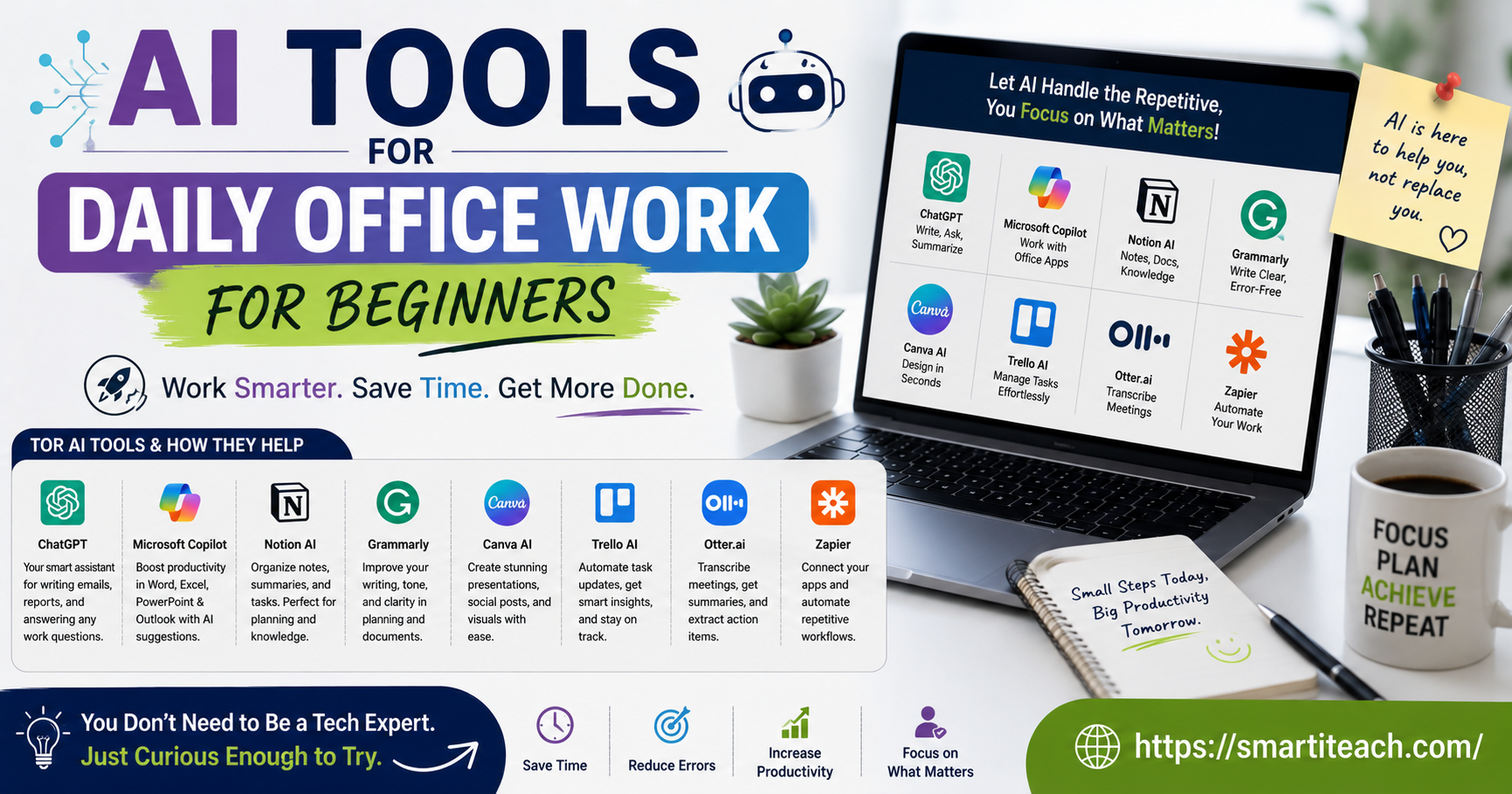

Okay so. Someone in my office said “just throw it in ChatGPT” a while back like it was the most obvious sentence in the world, and I smiled and nodded and had absolutely no idea what that meant in practice. If that’s where you’re at right now, you’re fine. You’re not behind, you’re just at the part where nobody explains anything, they just assume you already know.
This isn’t a big list of every AI tool out there. It’s the stuff that actually comes up in a regular office day. Writing, email, meetings, spreadsheets, files. That’s it. No hype, no ten-tools-you-need-right-now list, just the ones that show up when you actually sit down and work.
Writing
The general assistant thing
ChatGPT, Copilot, Gemini, whichever one your job already pays for — honestly just use that one, don’t overthink which is “best.” They’re all more similar than the marketing makes them sound, and switching later costs you nothing.
The hard part isn’t the tool. It’s the first few times you use it and the output feels a bit off and you think you did something wrong. You didn’t. You just say “make it shorter” or “less formal” and it fixes itself. It’s more like texting a coworker than googling something, once that clicks it stops feeling weird.
Start on something small. Not the important client email. The boring internal one you’d normally spend ten minutes wording anyway. Meeting reschedule, a quick status update, something nobody’s going to scrutinize. Get the feel of it there first.
Grammar and tone stuff running in the background
Grammarly, and things like it. It just sits there while you type and catches what the assistant might miss — a typo, a line that reads meaner than you meant.
Beginners usually like this one fastest because you don’t have to change anything about how you write. You just keep going and it flags stuff. No new habit to build, no extra step, it’s just there.
Small thing but it matters. One blunt line to a client and you’re doing damage control all afternoon. Catching it before you hit send costs nothing and saves a lot.
Forty replies deep in a thread, half of them just say “+1,” and somewhere buried in there is a decision you’re apparently supposed to know about. Outlook and Gmail both have a summarize option now. Pulls the actual point out. Doesn’t fix the fact that the thread existed in the first place, but it stops you having to read all forty replies to find the one that matters.
And for drafting replies — most platforms will draft one based on what you received. It’s not great, don’t send it as-is. But editing beats staring at a blank box trying to word “no” politely for the third time this week. Something about having a starting point makes the whole task feel smaller than it is.
Meetings
Letting something else take notes
Otter, the built-in stuff in Teams, Google Meet’s note feature. Records, transcribes, hands you a summary after. Fixes the worst part of meetings honestly — trying to listen and type at the same time and doing both badly.
Once you stop worrying about writing every word down you can actually listen. Changes how useful meetings feel almost right away. You catch things you’d have missed while your head was down scribbling half a sentence.
Pulling out what actually needs to happen
Some tools go further and list who owns what, by when. Not perfect — check it — but way better than scrolling through forty minutes of transcript trying to remember what you agreed to. Beats the version where three people leave the call with three different memories of what was decided.
Chat tools for finding stuff your team already knows
A quieter one, but useful. If your company uses Slack or Teams heavily, some of the AI features built in now let you ask a question in plain language — “what did we decide about the vendor contract” — and it’ll search through past messages and pull the relevant thread instead of you scrolling back three weeks trying to find it yourself.
For a beginner this one’s easy to forget exists, mostly because it’s tucked into a search bar you’ve probably never clicked. Worth trying next time you catch yourself about to ask a coworker “didn’t we already talk about this somewhere?”
Spreadsheets
If formulas were never your thing — Copilot in Excel, the AI stuff in Sheets — type what you want in plain English. “Total sales by region, last quarter.” It builds the formula. Don’t need to know if that’s a SUMIF or a pivot table or something else entirely, don’t need to remember any syntax at all really.
Probably the best entry point for a total beginner honestly. Spreadsheets are where a lot of office anxiety lives quietly. Not knowing a formula used to mean bugging a coworker or losing twenty minutes to a search engine, hoping the third result actually matched your version of Excel. Now it’s a sentence.
Messy data too — inconsistent dates, extra spaces, random capitalization. Most spreadsheet tools catch this now and fix it in a couple clicks. Used to be a slog, the kind of task you’d put off for a week because it was so tedious.
Calendars and to-do lists
Clockwise, or the scheduling stuff built into Outlook and Google Calendar. Looks at everyone’s availability, suggests a time. Beats five emails back and forth trying to land on a slot for six people, where somebody always replies a day late and you have to start over.
Notion AI, Todoist’s smarter features — take a messy brain dump, sort it by priority or deadline. Sometimes just seeing it organized is enough to actually use the list instead of ignoring it all day and rewriting it tomorrow morning.
Presentations
Microsoft Designer, Canva’s AI stuff. Feed it a rough outline, it builds a deck with a consistent look. If content’s the easy part for you and design makes you want to close the laptop, this handles that part.
You still have to know what you’re saying. Just not also fighting fonts at 11pm the night before, trying to figure out why the title slide looks worse than the one you had an hour ago.
Files and documents
Long report, a PDF someone forwarded with zero context, a policy doc you’re barely relevant to. Word, Docs, Adobe’s tools — summarize the key points in seconds now. Read the summary, decide if you need the whole thing. Half the time you don’t, and that’s twenty minutes back.
And finding files. If your shared drive is chaos, nothing named the same way twice, folders five deep — search in Drive or SharePoint works by meaning now, not exact file name. “The budget doc from last quarter’s planning meeting” works better than remembering if it was called Budget_FINAL_v3_ACTUAL, which, let’s be honest, it probably was.
Customer-facing stuff needs extra care
If part of your day is writing to actual clients, not just coworkers, treat it a bit differently. A drafted reply is a fine start but the tone matters more out there, and something that reads fine internally can land badly outside the company. What passes between coworkers as normal directness can read as cold to someone outside your team.
Read it out loud before sending, even if it’s ten extra seconds. Grammarly and similar let you set intended tone — friendly, formal, apologetic — and flag where the draft’s off from that. Small habit. Protects a relationship you can’t easily rebuild once it’s damaged, and it’s a lot cheaper than the alternative.
Privacy, quickly
Before pasting anything in, pause for a second. Client info, financial numbers, anything confidential — should this even be leaving the company? It’s an easy thing to forget mid-task when you’re just trying to get something done fast.
A lot of workplaces have their own approved version of these tools, stronger privacy than the free public one most people default to. Use that if it exists. If you’re not sure what’s approved, ask IT before this becomes a habit you never think twice about. Two minutes now, saves a headache later, and it’s a much easier conversation to have before something goes wrong than after.
Things nobody tells beginners
These get things wrong sometimes. A summary misses the point. A drafted email misreads the room completely. A formula doesn’t quite fit your data. Treat it as a solid first draft, not the finished thing. Read it before you use it, every time, no exceptions really.
Vague instructions get vague results. The more specific — tone, length, who it’s for — the better what comes back. Worth spending the extra ten seconds typing a fuller request than fixing a bad one after.
And it takes maybe a week or two to stop feeling odd using these. Every new piece of software feels off at first, this isn’t unique to AI tools. That feeling fades faster than you’d think once it’s just part of the day instead of something you consciously remember to try.
Where to start
Don’t try all of this in one week. Pick one thing you do daily, bring in one tool for that specific thing. Maybe the assistant for your first email each morning. Maybe just turning on meeting transcription for your next call and seeing how it feels.
Small repeated use gets you comfortable faster than trying to overhaul everything at once. Few weeks in, you’ll know what actually fits how you work, and the rest just falls away on its own. That’s mostly how people end up with a setup that works. Not planned out perfectly in advance. Just trying small stuff, keeping what helps, dropping what doesn’t, until something sticks.
And if none of it sticks right away, that’s fine too. Some people take to this stuff in a day, some take a month, and either speed is completely normal. The only real mistake is deciding it’s not for you before you’ve actually given any of it a proper try.




[…] this isn’t a “top 10 tips” listicle written to fill space. It’s what actually matters if you want your accounts […]
[…] actual AI, not a rebrand. Some tools slap “AI-powered” onto what’s really a static template engine. Worth checking whether the AI part does […]
[…] one thing worth doing right away is setting up Shared Drives instead of relying on personal “My Drive” folders – a Shared Drive belongs to the team, not a person, so nothing disappears when […]
[…] wants to hear “just update your software” as advice, I get it, it’s not exciting. But outdated browser versions carry known […]