
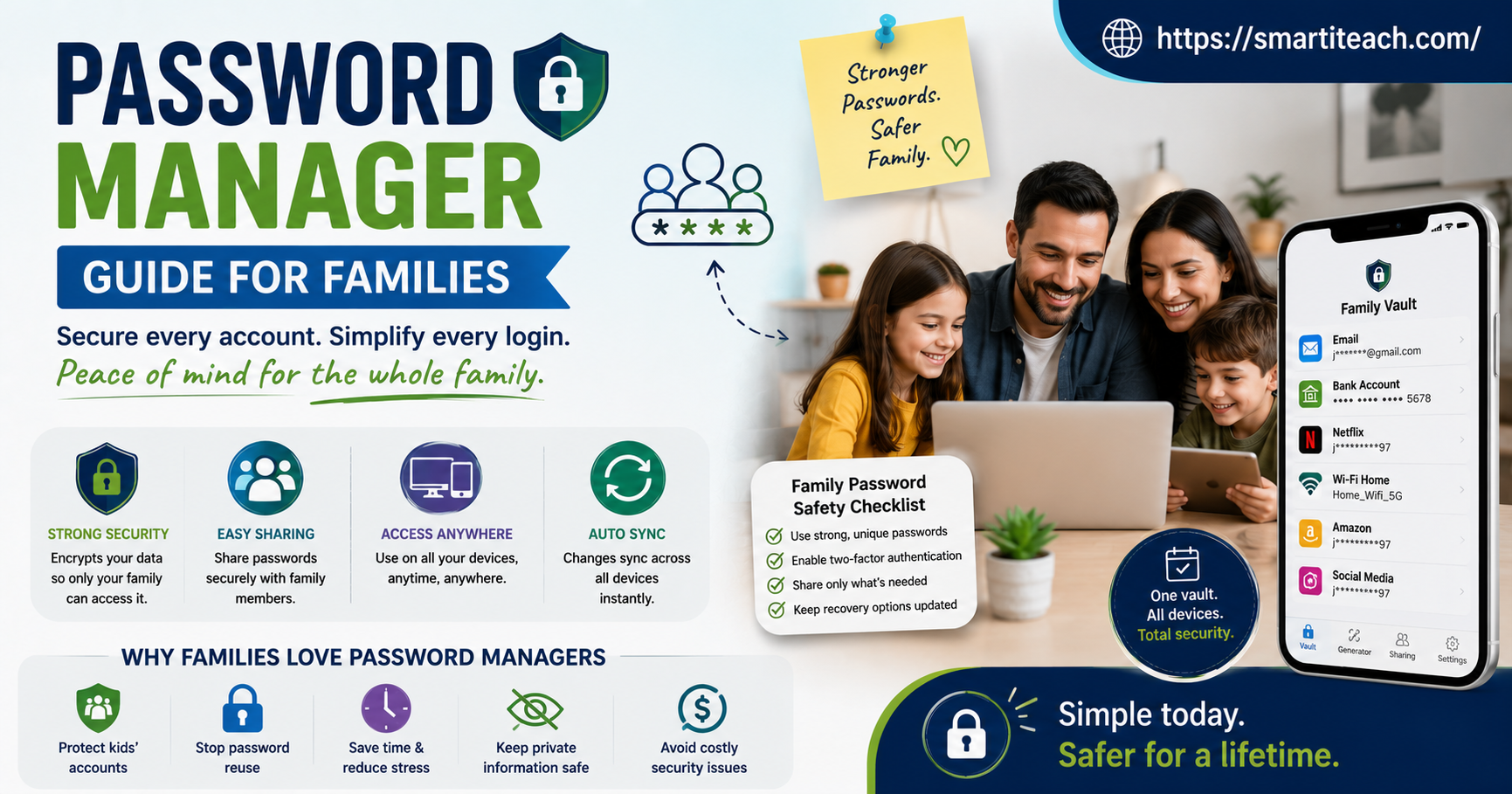

My sister called me up a while back, kind of annoyed, asking how her twelve-year-old had guessed the wifi password, the streaming login, and like three other accounts. Turns out everything was some version of the dog’s name plus a birth year. Classic. We’ve all been that household at some point. Sticky note on the fridge, same three passwords rotated across forty different accounts, someone’s kid locked out of a game because they fat-fingered the password four times in a row.
A password manager fixes basically all of that. And it’s way less complicated to set up than people think. This is just the practical version. What to actually look for, how to get everyone in the house on board without a fight, the stuff people mess up the first time.
Why a Family Even Needs One
One Weak Password, Everyone’s Kind of Exposed
Nobody says this part enough. If one person in the house reuses a password across email, banking, some random shopping site — and that shopping site gets breached — whoever’s got that leaked password now has a shot at everything else too. Families share networks, sometimes share devices, and definitely share bad password habits without ever noticing. One weak link, whole house exposed. Not dramatic, just true.
Kids Need Their Own Thing, Not Just Your Login
A lot of parents just hand over their own password for a shared streaming account, figuring it’s simpler. Works fine until the kid needs to log in at school on their own device and can’t remember what you typed six months ago. Or until they’re old enough that you’d rather they not see your actual accounts at all. A real family plan gives everyone their own vault. Parent can still see and manage things.
What You’re Actually Looking For
Get the Family Plan, Not the Solo One
1Password, Bitwarden, Dashlane — most of the well-known ones have a family tier, usually five to ten people under one subscription. Don’t grab a single-user plan thinking you’ll just share the login between everyone. That kills half the point. You lose track of who did what, and everyone’s stuck sharing one master password anyway, which is basically the exact problem you were trying to fix in the first place.
How It Handles Shared Stuff Matters More Than People Think
The whole reason a family needs this is different from what one person needs. You want shared folders — wifi password, streaming logins, whatever — that specific people can access without handing them your personal email or bank login too. Not every tool separates this cleanly. Worth checking before you commit to one, since switching later means moving everything over again.
Does It Even Work on Your Actual Devices
Mixed household — iPhone here, some old Android tablet there, a Windows laptop, a Chromebook the kids use for homework — make sure whatever you pick actually has decent apps for all of it. Some of these tools are great on one platform and kind of clunky everywhere else. Easy thing to skip checking, annoying thing to discover after you’ve already paid for a year.
Emergency Access, Because Life Happens
Look for something that lets a trusted person get into the vault if something happens to whoever’s holding the account — illness, an accident, whatever nobody wants to think about. Most family plans have some version of this built in, usually with a waiting period so it can’t just be abused on the spot by someone who shouldn’t have access.
Setting It Up Without Making It a Whole Thing
Adults First, Kids Later
Get yourselves set up and comfortable before dragging the kids into it. Import your existing passwords from whatever browser you’ve been using — most tools have a built-in import, so you’re not retyping forty logins by hand. Use it yourself for a week or two first. Then you can actually explain it instead of fumbling through the interface together in real time, which usually ends up more frustrating for everyone than just learning it solo first.
Add Kids Based on Their Age, Not All in One Go
A ten-year-old doesn’t need the same setup as a sixteen-year-old with their own email and social accounts already. For younger kids, it usually makes more sense for you to hold the vault and just share specific items — tablet passcode, a school login — rather than giving them a full independent vault yet. Older teens can handle their own vault, parental oversight switched on so you’re not fully in the dark but they’ve still got some actual privacy.
Build the Shared Family Vault Before Anything Else
Before sorting individual accounts, set up the shared stuff first. Wifi, streaming, the family calendar login, shared shopping accounts. Honestly this is usually the most useful part of the whole setup, since it’s what every single person in the house actually needs regularly.
One Strong Master Password, Never Reused Anywhere
This is the one password each person actually has to remember, since it unlocks their whole vault. Make it a phrase, not a single word. Four random words strung together tends to be way more memorable and way harder to guess than some shorter password with a 3 swapped in for an E. And it can’t be reused anywhere else. Ever. It’s the one thing protecting everything.
Getting Everyone Actually on Board With This
Explain Why, Not Just Which Button to Click
Kids, and honestly some adults too, tune out fast if it’s just “click here, then here.” What actually lands is a quick explanation of what happens when passwords get reused — a breach on some random site can leak into a completely unrelated account. Once that clicks, the extra step stops feeling like busywork and starts feeling obvious.
Make the First Login Actually Work
First time someone logs into something new through the manager, it should just autofill, no fuss. If it doesn’t work smoothly right away, that’s usually the exact moment someone gives up and goes back to typing passwords from memory. Spend ten minutes getting the browser extension properly set up before rolling this out to the whole house.
One Household Rule Going Forward
Once it’s in place, agree on this: any new account, for anyone, gets its password generated and saved through the manager. Not typed from memory, not “I’ll add it later.” This one habit is basically what keeps the whole system useful instead of everyone quietly sliding back to old habits in three months.
Stuff That Comes Up Later
When a Teenager Wants More Privacy
As kids get older they’ll want accounts you’re not automatically peeking into, and that’s a completely normal, healthy thing for them to want. Most family plans let you adjust individual permissions over time, so a teen can move from a fully visible vault to a more private one without leaving the family plan. Worth having this conversation directly instead of letting it turn into friction nobody addressed, since most teens actually respond well to being asked rather than just having settings quietly changed on them.
If Someone Forgets Their Master Password
Since the company usually doesn’t store the master password anywhere, forgetting it can genuinely mean losing that person’s vault, depending on the tool. This is exactly why recovery options and emergency access matter so much for a family specifically. Set these up when everyone first joins. Not after someone’s already locked out and panicking about it, staring at a login screen that won’t budge.
A Quick Check-In Every Few Months
Set a reminder every few months, sit down as a family, look at what’s actually in the shared vault. Clear out old accounts nobody uses, update anything flagged as weak or reused, check the emergency access settings still make sense as kids get older. Ten minutes every few months and the whole thing stays useful instead of slowly turning into digital clutter, same as anything unused eventually does, whether it’s a junk drawer or a password vault.
A Few Honest Things to Expect
First week feels a little clunky. Everyone’s relearning how to log into stuff they’ve logged into a hundred times, there’s usually some grumbling about the extra step. Settles down fast though, usually a week or two in, once autofill’s doing its job and nobody’s manually typing passwords anymore, at which point most people forget they were ever annoyed about it.
Not every account plays nicely right away either. Some sites have weird login flows autofill doesn’t handle perfectly, and you’ll occasionally have to copy-paste a password manually. Normal. Doesn’t mean the tool’s broken, just means a handful of websites are stubbornly built, usually the older ones nobody’s bothered updating in years.
And the youngest kids will still need help for a while yet. A password manager isn’t a replacement for actually teaching kids why passwords matter in the first place. It makes good habits easier to stick to. It doesn’t have the conversation for you, and it won’t stop a kid from telling a friend their login out of habit either — that part’s still on you.
Why Bother Setting This Up At All
A family password manager isn’t really about any one account. It’s about not having the whole household’s digital life resting on the same three passwords typed slightly differently everywhere you go. Set up properly, nobody has to remember more than one password, logins work the first try, and the wifi password’s not taped to the router for every houseguest to read anymore.
Takes an afternoon to set up right, about a week to feel normal. After that it just quietly runs in the background doing the thing it’s supposed to do. Not flashy. Just there when you need it, the same way a smoke detector is there when you need it and completely forgettable the rest of the time.



[…] four-digit PIN beats nothing, but it’s not doing a lot. Six digits is a real step up. A proper passcode with letters mixed in is stronger again, though yes, more annoying to type fifty times a day. Face […]